 Bisrat Shibeshi
To change your resume template without retyping it, keep your resume in a tool that stores your text separately from its design. In a resume builder, a new template is one click, and every word, date and bullet stays where you wrote it. In Word or Google Docs there's no button that moves a finished resume into a different template's layout, so you copy the text across by hand.
If your resume already lives in a Word file or a PDF, you can still avoid the retyping. Import it into a builder once, and every template switch after that is free of copying.
This guide explains why word processors make you retype, shows one resume in three templates, and walks through switching and importing step by step.
Why does changing a resume template in Word or Google Docs mean retyping?
A Word or Google Docs template is a starting document. Its layout, the columns, the header block and the spacing, is part of the file you typed into. Once your text is in it, the text and the layout are tied together.
Word has two tools that look like they should help. According to Microsoft's guide to templates, themes and styles, a theme changes a document's coordinating colors and fonts, and a style changes all the text formatted with it. Both restyle the resume you already have. Neither moves your text into another template's layout, so going from a single-column design to one with a sidebar still means copying each section into the new file.
Google Docs works the same way. Its resume templates are separate documents, so a new design means opening a fresh template and pasting your sections in one at a time.
Copying by hand is slow, and it's where errors creep in, like a date left behind or an old job title surviving in the new file.
How does a resume builder switch templates without retyping?
A resume builder keeps two things apart. Your content is stored as data, such as your name, each job with its dates and bullets, and each degree. The template is a set of design settings, such as fonts, colors, columns and where the header goes. Choosing a new template swaps the design settings and lays the same content out again.
We took OneCV's sample resume and switched it between three templates with very different layouts. Nothing was retyped or moved by hand.
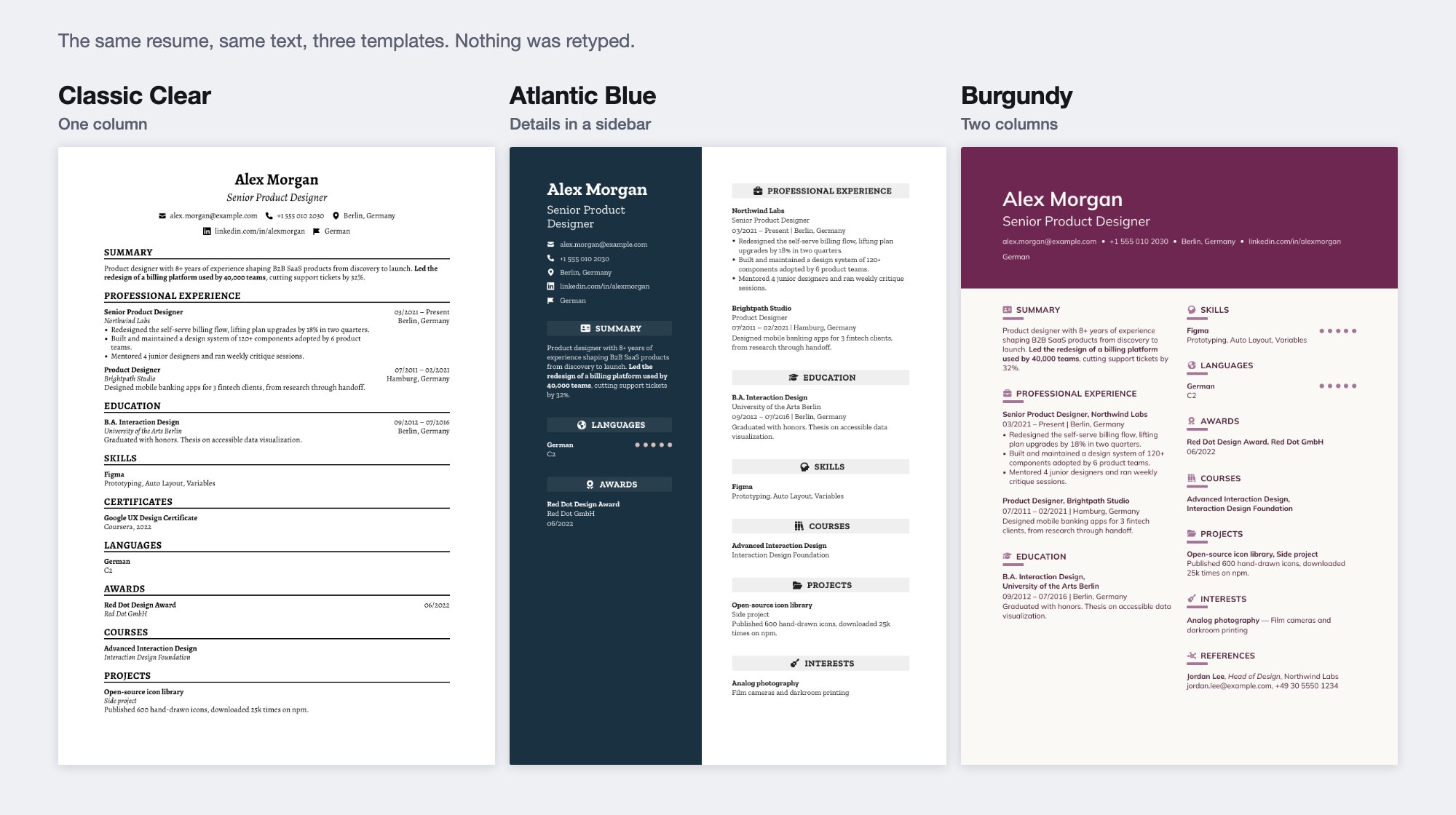
The text is the same in all three. What changed is where it sits. Classic Clear runs everything down one column. Atlantic Blue moves the contact details, summary, languages and awards into a dark sidebar. Burgundy splits the sections across two columns under a colored header, so different sections end up near the top of page 1.
How to change your resume template in OneCV
- Open your resume and go to the Customize tab.
- In the Templates card, click Browse templates.
- Pick a design, then click Use this template.
The new design applies straight away. Your text, sections, language, date format and page size (A4 or US Letter) all stay as they were. If you liked the old design better, the undo button in the Customize tab brings it back, along with any other design change you've made.
Switching is free. All 105 resume templates are on the Free plan, and you can switch as often as you like and download a PDF of each version with no watermark. You can also fine-tune any template afterwards with the design settings, such as fonts, spacing, colors and columns.
What should you check after switching templates?
A new template keeps your words, but it can change how they fall on the page, so look over the preview before you download.
Start with the page breaks. A design with larger headings or a sidebar can push a section onto page 2, and a denser one can pull it back. If a section spills over, lower the margins or spacing in the design settings.
Then check the section order. Two-column templates decide which sections sit in each column, so make sure your most recent job and your skills are still near the top, where a recruiter looks first.
Finally, check the photo. 42 of the 105 templates have a photo area. If you're applying somewhere photos aren't expected on a resume, pick a template without one.
Page size never changes when you switch, so a resume set to US Letter stays US Letter. Our guide to A4 vs US Letter covers which size each country uses.
How do you move an existing Word or PDF resume into a new template?
Import it once, then switch templates freely from then on. OneCV's import tool reads a PDF with selectable text, a OneCV JSON export, or plain text pasted into the import window. It turns your name, contact details, sections, dates, bullets and links into editable entries.
For a Word file, open it in Word or Google Docs, copy all the text and paste it into the import window. Scanned images and photos of a printed resume can't be imported, because there's no text in them to read.
After an import, read through each section once. Check that every date landed in the right job and every bullet is under the right heading, then pick a template. The Free plan includes 3 imports.
Can you keep a different template for each job?
You can. Duplicate the resume and give each copy its own template and its own edits, for example a plain single-column version for a bank and a design with more color for a startup. The Free plan holds one resume, so keeping several copies at once needs Pro. On Free, you switch the template on your one resume before each download.
If you're changing more than the design for each application, our guide to tailoring your resume to a job description covers which parts to edit each time.
Frequently asked questions
Will I lose my content if I change my resume template?
Not in a resume builder. The template only changes the design, so your text, dates and sections stay exactly as you wrote them. In OneCV you can undo the switch from the Customize tab.
Can I change my resume template for free?
Yes. OneCV's Free plan includes all 105 resume templates, unlimited switching and unlimited PDF downloads with no watermark.
Can I change the template of a resume in Google Docs?
Not automatically. Google Docs has no way to apply a different template's layout to a document you've already filled in, so you open the new template and paste your text in section by section.
Does applying a Word theme change my resume template?
No. A Word theme changes the colors and fonts of the document you have, and styles change the text formatted with them. The layout stays the same, so moving to a different template still means copying your text across.
Can I go back to my previous template?
Yes. In OneCV, the undo button in the Customize tab reverses a template switch. You can also reopen Browse templates and pick the old design again, since your content doesn't change either way.
Can I import a resume I made in another builder?
Yes, if you can download it as a PDF with selectable text, or copy its text. Import the PDF or paste the text into OneCV's import window, check each section, then choose a template.
Create your free account and try a few templates on your own resume.